Resident: Claim Your Flat and Cast Your Vote
Resident: claim your flat and cast your vote
Your society moved onto Plinth and sent you an invite. Claiming your flat takes about a minute and turns that invite into a working account: your vote, your maintenance bill, your gate passes. Every screen below is a real capture of the app on a phone.
Time: about a minute · You need: the email or phone your society has on file · Best on: your phone
Before you start: use the contact your society has on file
Your admin uploaded a roster with an email address and phone number against your flat. Plinth finds your flat by matching what you sign in with against that roster. Sign in with a different personal address and there is nothing to match, and you will be told your details do not match rather than shown your flat.
If you were sent an invite email, the address it arrived at is the right one to use.
- No password to create. Plinth sends a six-digit code each time you sign in.
- Nothing to install to begin with. The link works in your phone browser, and you can add Plinth to your home screen afterwards.
- One flat or several. If you own more than one, you claim each one and switch between them inside the app.
Step 1: Sign in with your phone or email
Open the invite link, or go to plinth.life/login.
- The screen opens on phone number. Enter the mobile your society has for you.
- Prefer email? Tap Continue with email and use the address the invite arrived at.
- A six-digit code arrives. Type it in.
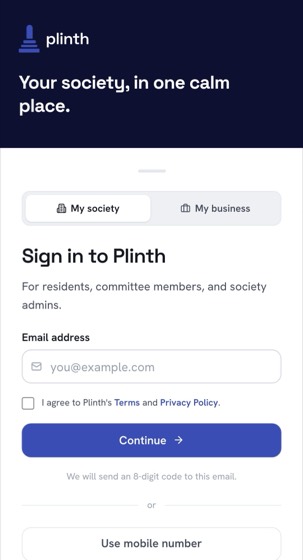
If the code does not arrive, wait a full minute before asking for another, check your spam folder for the email route, and make sure you used the contact your society has on file. Repeatedly asking for new codes temporarily locks further attempts.
Step 2: Check the flat Plinth found for you
Plinth looks you up in the roster and shows the flat it matched, here Block A · Flat 4. Read that line before anything else. It is the one thing on this screen that must be right.
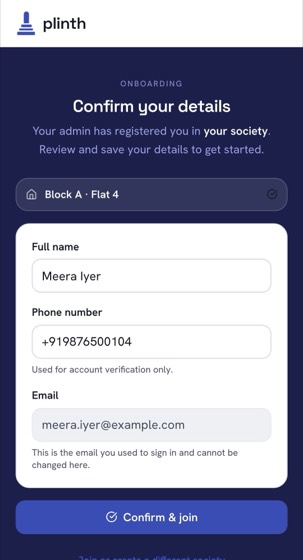
If that is not your flat, stop and contact your committee. Do not claim a flat that is not yours: the claim links your account to that flat's bills and its vote. A wrong match usually means the roster has your contact against a neighbour's flat, and an admin fixes it in a minute.
Step 3: Confirm your name and number, then join
Your name appears as your society entered it, so correct the spelling if it is wrong. The phone number verifies your account and is how the gate reaches you, so give the number you actually answer.
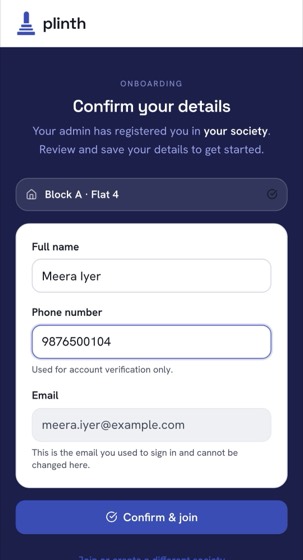
Tap Confirm & join. What happens next depends on one setting your society controls:
- Approved immediately, when your details match the roster exactly and your society allows automatic approval. You land straight on your home screen.
- Sent for approval, when your society reviews every claim, or when the match was not exact. You see a "request sent" screen and an admin confirms you, usually the same day. You will be notified.
Step 4: Your first two minutes
The home screen is built around one question: what is waiting on you.
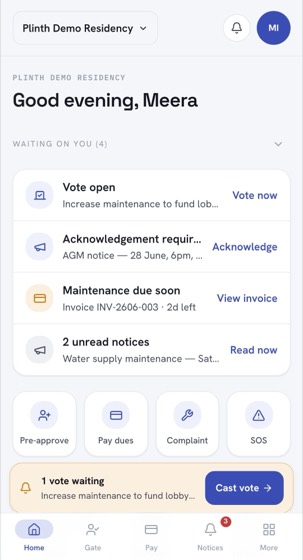
| On the screen | What it is | Do this first |
|---|---|---|
| Waiting on you | Everything with your name on it | Clear it once; it is the only list you need to check regularly |
| Vote now | An open poll your flat has not voted in | Open it, read the description and closing time, then cast |
| Acknowledge | A notice the committee needs confirmed as read | Tap through and acknowledge, so your society has its record |
| View invoice | Your maintenance bill and what it is made of | Check the amount, then pay online or set up autopay |
| Pre-approve | Tell the gate a guest, cab or delivery is coming | Use it next time you order something |
| Complaint | A helpdesk ticket the committee can track | Better than a WhatsApp message: it has a number and a status |
| SOS | An emergency alert to the gate and committee | Know it is there. Do not test it |
The five tabs along the bottom: Home (what is waiting on you), Gate (visitors, daily help, deliveries), Pay (dues, invoices, receipts, autopay), Notices (the noticeboard), and More (polls and elections, meetings and AGMs, directory, documents, amenities, parking, events, and your own flat records).
Step 5: Cast your vote
- Open the poll from Vote now on the home screen, from the Notices tab, or from your email.
- Read the title, description and time remaining. You get a reminder in the final 24 hours if you have not voted.
- If the poll requires documents and yours are not approved yet, tap Upload documents, add each file, and wait for admin approval. Voting unlocks automatically.
- Make your selection, or choose Abstain.
- Tap Cast your vote, then confirm.
Votes cannot be changed once confirmed, so read before you tap. You get a receipt with a timestamp, and for secret polls your choice is never shown to anyone.
More than one flat, tenants, and family
- You own several flats. Claim each one the same way. A flat switcher appears at the top of the app, and votes, bills and gate passes follow whichever flat is selected. You vote once per flat.
- You rent. Your landlord stays the owner on record and keeps the vote. Ask your committee to add you as a tenant so you get gate passes, notices and helpdesk access.
- Family in the same flat. Adults living with you can be added as family members with their own sign-in rather than sharing an account. The vote still belongs to the flat.
- A flat can only be claimed once. If yours shows as already claimed and it was not you, tell your committee: it is usually a previous owner or a family member who signed up first. Only an admin can reset it.
Troubleshooting
Nearly every problem at this stage is a mismatch between what you typed and what the roster holds. Your committee can fix all of them.
| What you see | What it means | What to do |
|---|---|---|
| Your contact details do not match the roster | The email or phone you signed in with is not the one against your flat | Sign in with the address the invite was sent to, or ask your admin what contact they hold |
| No flat found for you | Your flat is not on the roster, or has no contact details | Send your committee your flat number, name, email and phone |
| This flat already has a confirmed owner | Someone claimed it already | Ask your admin to reset the claim; only they can |
| You already have a pending request | Your claim is waiting on an admin | Nothing to do. You will be notified |
| Too many claim attempts | Several failed attempts in a short time | Wait a minute, then try once more with the correct details |
| The code never arrives | Wrong contact, or the message went to spam | Check spam, confirm the number or address, then request one more code |
| Already voted | The vote belongs to the flat and has been used, possibly by a co-owner | Check with others on your flat. A cast vote cannot be changed |
| Not eligible | The poll is limited to a group you are not in, or unpaid dues block voting | Clear outstanding dues, or ask which rule applied |
| Poll closed | The voting window ended | Nothing to do; results follow once the admin publishes them |
What your neighbours and committee can see
- Your vote is secret by default. Committees see the totals and that your flat voted, not what you chose. A poll can be run openly, and when it is, the poll says so.
- Your contact details are yours to publish. The member directory is opt-in per field.
- Documents you upload stay private. They go to your committee, not the noticeboard, and are removed after the retention period your society sets.
Questions? See the voting FAQ or email support@plinth.life. If you are the one setting the society up, read Admin: create your society and import the roster.
WAS THIS HELPFUL?
RELATED ARTICLES